Install the browser extension
The Botream Element Capture extension lets you click an element in Chrome or Edge to fill in its selector, and records what you do in the browser; it is normally installed for you by the agent installer.
What the extension does
- Element capture: the Capture button next to a Selector field in the editor lets you click the element in your browser. The extension works out how to find it and sends the selector back to the editor. See Finding elements.
- Recording: Record in the editor toolbar notes your clicks, typing, choices, keys and the pages you open (passwords are left out), and adds them to the task as commands. See Recording.
The extension is only for building tasks. Running them does not need it: the agent drives the browser itself through Playwright.
How it connects
The extension talks only to the Botream Agent on the same computer:
ws://127.0.0.1:17311- The agent listens on the loopback address
127.0.0.1, port17311. Nothing from the network can reach it, and it accepts only browser extensions, not web pages — and only from Chrome or Edge running in the agent's own Windows session, not from programs of other users signed in to the same computer. - The first time it connects, the extension is paired with the agent: the agent gives it a key, which both keep. Afterwards each side proves it knows the key before anything is exchanged, so the extension never sends a page to another program listening on that port. If the extension shows Not the Botream Agent this browser is paired with after the agent was reinstalled or you use the browser under another Windows account, click Pair again in its window.
- The Botream Agent tray app must be running on the computer where you capture. A machine where nobody is signed in cannot capture.
- Because of this, you capture on a computer that has both the browser and an agent — usually your own workstation.
Automatic installation (agent installer)
When Install the Botream extension in Chrome and Edge is checked in the agent installer (the default), setup adds the extension to the Chrome and Edge forced-installation policy (ExtensionInstallForcelist). The browsers install it by themselves, keep it up to date, and users cannot remove it. From chooses where the browsers get it:
| From | Where | Works on |
|---|---|---|
| Chrome Web Store and Edge Add-ons (default) | Chrome installs it from the Chrome Web Store, Edge from Edge Add-ons | every machine; the browser needs internet access to the store |
| The Botream server | Both install it from your Botream server (<server>/extension/update.xml) |
managed machines only: joined to an Active Directory domain, or enrolled in a browser management service such as Chrome Browser Cloud Management or Intune. For networks without internet access. |
Note: On an unmanaged machine browsers ignore the policy for the Botream server's extension. Choose the stores, or install the extension by hand (see below).
In a silent installation pass EXTENSIONSOURCE=store or EXTENSIONSOURCE=server; to skip the policy, clear the checkbox or pass EXTENSION=0 (Install agents). Upgrades keep the choice; agents installed before the stores were offered keep the Botream server until you run setup with EXTENSIONSOURCE=store. Switching replaces the extension, so it is never installed twice. Uninstalling the agent removes the policy again.
Check the policy
Open chrome://policy (or edge://policy) and look for ExtensionInstallForcelist. Then open chrome://extensions (or edge://extensions): Botream Element Capture should be listed and enabled.
Manual installation (developer mode)
On a machine where the policy does not take effect:
- Get the unpacked extension folder from your Botream administrator (the extension package that comes with the installers, unzipped).
- Open
chrome://extensions(oredge://extensions). - Turn on Developer mode.
- Click Load unpacked and choose the extension folder.
An extension loaded this way is not updated automatically: load the new version after a Botream upgrade.
Check that it works
Click the extension's icon in the browser toolbar (pin it first if it is hidden under the puzzle-piece menu). The popup shows the connection state:
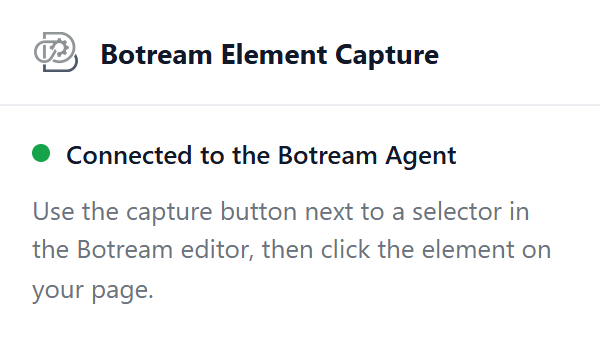 Connected: ready to capture.
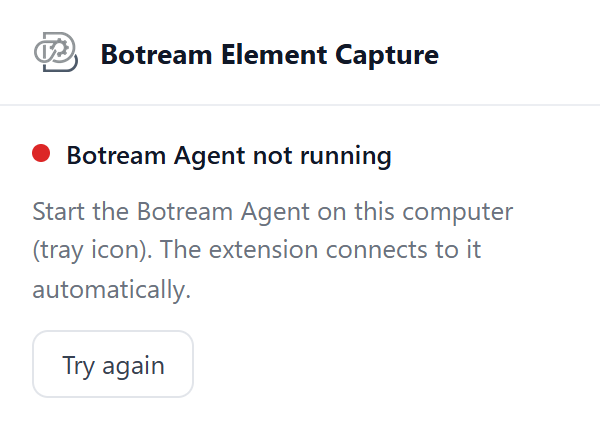 Start the agent, then Try again.
| Popup | Meaning |
|---|---|
| Connected to the Botream Agent | Ready. Use the capture button next to a selector in the editor. |
| Botream Agent not running | Start the Botream Agent on this computer. The extension connects to it automatically; Try again retries at once. |
| Capturing | A capture is in progress: click an element on the page, or press Esc to cancel. |
While it cannot reach the agent, the extension's icon shows a red !.
The extension's texts (the popup, the capture banner and the recording bar in the page) follow the browser's language: Turkish when Chrome or Edge runs in Turkish, English otherwise.
Capture an element
- Open the page you want to automate in a Chrome tab.
- In the editor, select a command with a Selector field (for example capture) and click Capture next to it.
- The browser shows the right tab: the one with the address of the command's
--browserpage if it is open (the same address, else the same site), otherwise the tab you used last. - Elements are highlighted as you move the mouse. Click the element: the click does not reach the page, and the editor comes back to the front. Esc asks whether to cancel the capture.
- If several selectors were found, choose one in the editor and click Use selected.
If several agents are online, the editor first asks you to choose the one on this computer. The agent you last captured with in this browser (or your own workstation) is already selected.
Some pages cannot be captured: browser pages such as chrome://, the Chrome Web Store, the built-in PDF viewer, and the Botream web app itself.
Troubleshooting
Capture does not work
Work through these in order:
| Check | How |
|---|---|
| The agent tray app runs on this computer | The Botream Agent icon is in the notification area and its tooltip says Connected. The capture dialog's error repeats this requirement: The Botream Agent must run on this computer and the Botream Element Capture extension must be installed in Chrome. |
| The extension is installed and enabled | chrome://extensions lists Botream Element Capture, enabled. If it is missing, check chrome://policy and whether the machine is managed, or install it by hand. |
| The extension reaches the agent | The popup says Connected to the Botream Agent, and the icon has no red !. If not, start the agent and click Try again. |
| The right agent was used | With several agents online, choose the one on this computer when the editor asks. |
| The page can be captured | Open the page in a normal tab (not chrome://, the Web Store or a PDF), and not in the Botream web app's own tab. |
| The page is open | Capture picks the element in your own browser, not in the browser a task run opens. Open the page in Chrome first. |
The extension does not install itself
- The extension comes from the Botream server but the machine is not managed, so Chrome and Edge ignore the policy: run setup again with
EXTENSIONSOURCE=store(or choose the stores under From in the wizard), or install the extension by hand. - The extension comes from the stores but the browser cannot reach them (no internet access, a proxy blocks them): allow the access, or choose the Botream server on managed machines.
- The agent was installed with
EXTENSION=0or with the checkbox cleared, so no policy was added: install the extension by hand. - The browser has not picked up the policy yet: restart the browser, or open
chrome://policyand click Reload policies.