Install the server
Botream Server is one Windows installer that sets up the web app, the API and the scheduler as the BotreamServer Windows service; this page takes you from an empty machine to the first sign-in.
The whole installation is also available as one printable file: Installation guide (PDF).
What you install
A Botream installation consists of two packages:
| Package | Where to install | What it installs |
|---|---|---|
Botream-Server-<version>.msi |
The server, once | Web app, API, scheduler and the BotreamServer Windows service |
Botream-Agent-<version>.msi |
Every Windows machine that runs tasks | The Botream Agent (tray app and BotreamAgent Windows service) and the browser extension |
port 3000
BotreamServer serviceBotreamfrom the agent
Install in this order:
Botream-Server-<version>.msi on the serverBotream-Agent-<version>.msi on every machineRequirements
| Item | Requirement |
|---|---|
| Operating system | Windows 10/11 or Windows Server, 64-bit |
| Database | SQL Server 2019 or later. The free Express edition is enough. It can run on the same machine or on another machine in the network. |
| Rights | Administrator rights for the user running the installation |
| Network | A free TCP port for the web app and the agents (default 3000) |
SQL Server is the only external component Botream needs. You do not install Node.js or .NET: both are included in the package.
Prepare SQL Server
Install SQL Server first if your organization has none for Botream. Botream keeps everything in one database (default name Botream), which setup creates if it does not exist.
What SQL Server needs depends on where it runs:
- On the server machine: nothing beyond the installation if you sign in with a Windows account that is sysadmin on the instance. Setup turns on TCP/IP and SQL Server logins itself when they are off.
- On another machine: TCP/IP must be on, SQL Server authentication enabled and the SQL Server port (default 1433) allowed in that machine's firewall. You need a SQL login that may create the database.
Run the server installer
Run Botream-Server-<version>.msi on the server. The wizard has these pages:
Welcome — click Next.
Destination Folder — the installation folder. Default:
C:\Program Files\Botream Server.Port — the port browsers and agents use to reach Botream (default 3000). Setup opens it in Windows Firewall. Choose another port if 3000 is used by another application.
 Botream Server SetupPort (default 3000):3000
Choose another port if 3000 is already used on this server. The Windows firewall is opened for it so agents on other machines can connect. After the installation Botream opens in the browser to finish the setup.
The Port page: 3000 unless another application uses it. Database — where SQL Server is:
Option When Next page On this computer SQL Server is installed on this machine Asks for the instance and the sign-in method On another computer SQL Server is on another machine in the network Asks for the address, port and SQL login Decide later, in the browser You want to enter the connection later Goes straight to the installation Botream Server SetupOn this computer Setup finds the installed instances and, with your Windows account, creates the database and a SQL login for Botream, turning on TCP/IP and SQL Server logins if needed. On another computer A SQL Server on the network: you enter its address and a SQL login that may create the database. Decide later, in the browser The setup page that opens after the installation asks for the connection.The Database page. The database details for your choice (see below).
Ready to install — click Install.
On the last page, leave Open Botream in the browser to finish the setup checked and click Finish. The first-run setup opens in the browser.
Botream Server SetupCompleted the Botream Server Setup WizardClick the Finish button to exit the Setup Wizard.
Open Botream in the browser to finish the setupLeave the box checked: the first-run setup opens in the browser.
SQL Server on this computer
Botream Server Setup- Instance: the installed instances are listed; choose the one to use.
- Database: the database name (default
Botream). It is created if it does not exist. - Sign-in method:
- My Windows account: your Windows account must be sysadmin on this SQL Server. Setup creates the database and a
botreamSQL login that owns it, with a random password. It turns on TCP/IP and SQL Server logins if they are off; SQL Server restarts once for that. - A SQL Server login: you enter the name and password of an existing SQL login.
- My Windows account: your Windows account must be sysadmin on this SQL Server. Setup creates the database and a
- Test connection tries the connection; Next runs the same check.
If there is no SQL Server on this machine, the wizard says so. Install SQL Server first or use one of the other options.
SQL Server on another computer
Botream Server Setup
- Server: machine name or IP address. Port: default 1433. For a named instance, enter that instance's fixed TCP port instead of the instance name.
- Database: the database name (default
Botream). It is created if it does not exist. - SQL login / Password: a SQL login allowed to create the database.
- Trust the server's certificate: usually left checked for SQL Servers in the company network.
- Test connection tries the connection.
First-run setup in the browser
When the installation ends, http://localhost:<port> opens in the browser.
Warning: The first-run setup only works in a browser on the server itself. Setup requests from the network are refused; other computers see Botream is not set up yet until it is done.
The setup has three steps: Database, Administrator and Done.
Database
- If you chose the database in the installer, the page shows the prepared connection (Server, Database, SQL login), checks it and you click Next. Use a different SQL Server lets you enter another one.
- If you chose Decide later, in the browser, you enter Server, Port, Database, SQL login and Password, click Test connection and then Next. The database and its tables are created.
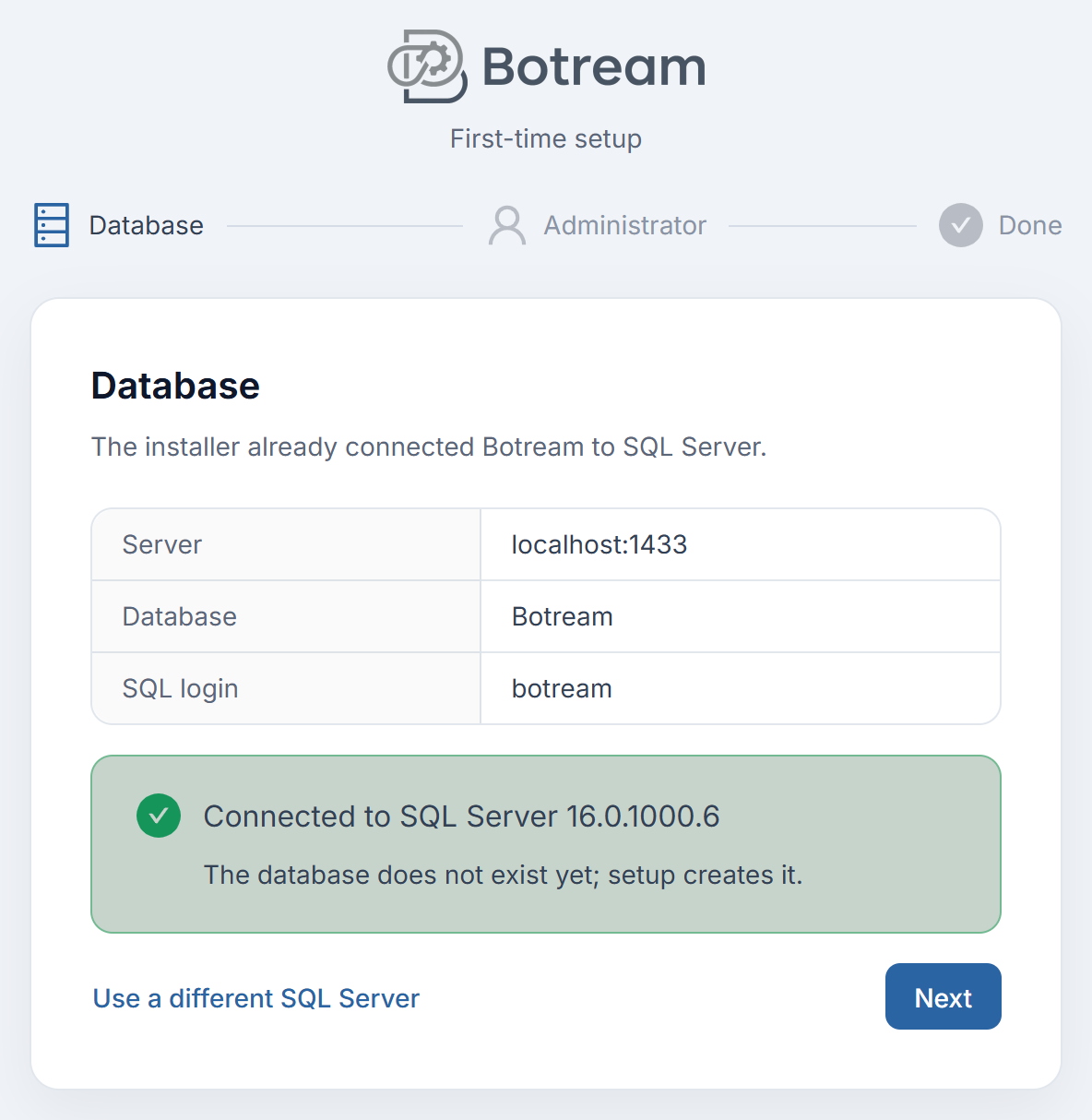 Step 1: the connection the installer prepared is checked.
Administrator — the first account, with full access: Username (at least 3 characters), Email, Password (at least 8 characters) and Repeat password. Click Finish setup.
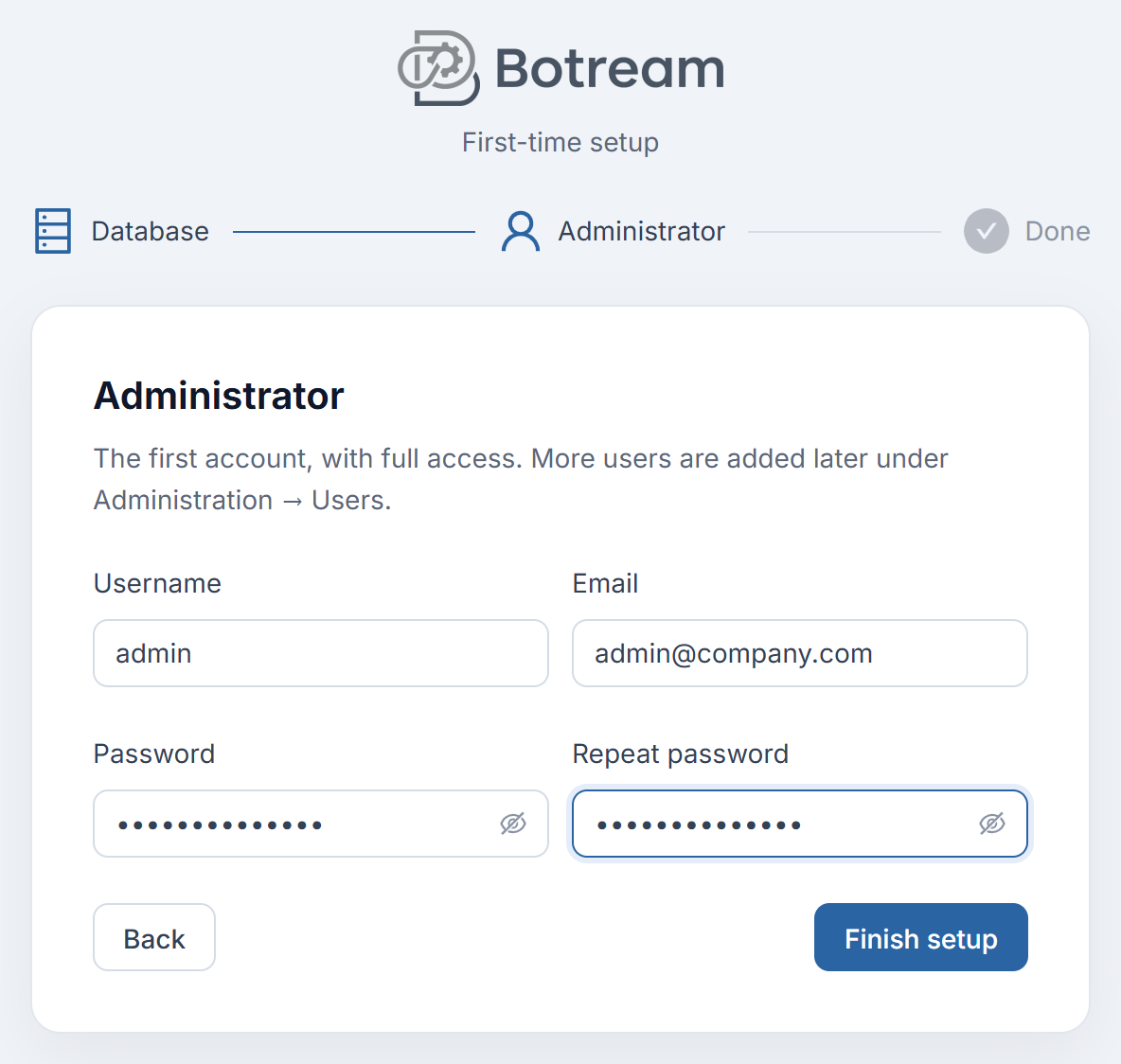 Step 2: the first administrator account.
Done — the page shows two keys, once:
- Agent registration token — you enter it when installing agents. Administrators can show it again later under Administration → Agents → Install an agent.
- Encryption key — encrypts the passwords in vaults, the mail password and the AI key. Keep a copy somewhere safe: a reinstallation needs it to read stored passwords.
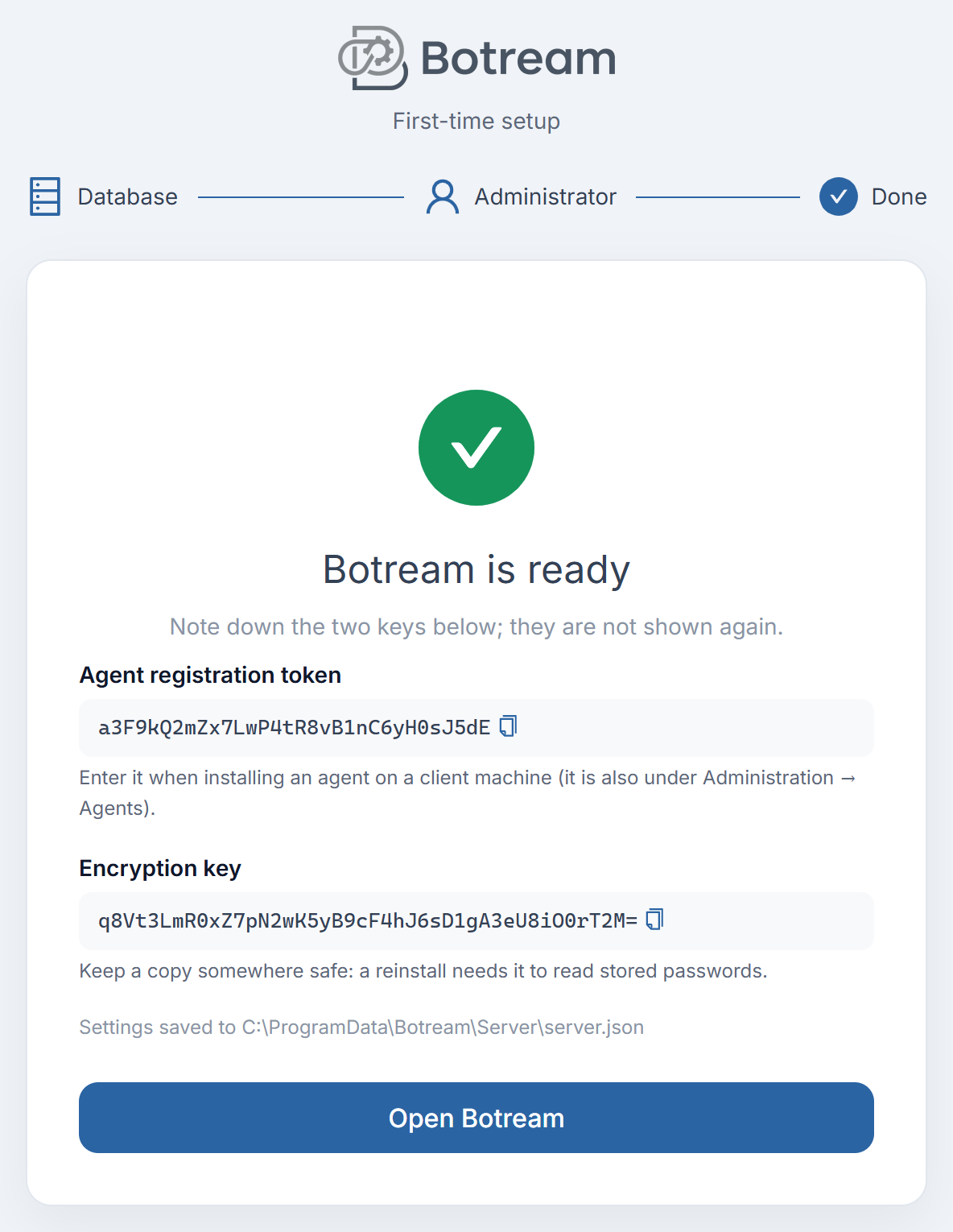 Step 3: note down both keys; they are not shown again.
Click Open Botream. The server switches to normal operation without a restart and you can sign in with the administrator account. More users are added under Administration → Users (Users and roles).
From other computers the address is http://<server-name>:<port>.
Note: If the database already holds Botream data (for example after a reinstallation), the Administrator step offers Keep the existing accounts and a field for the Encryption key of the previous installation. See Upgrade, back up and uninstall.
Silent installation
For software deployment tools, run the installer from an elevated command prompt:
# Database chosen later, in the browser
msiexec /i Botream-Server-<version>.msi /qn PORT=3000

# SQL Server on this machine
msiexec /i Botream-Server-<version>.msi /qn SQLMODE=local [SQLINSTANCE=SQLEXPRESS] [SQLDATABASE=Botream] [SQLUSER=.. SQLPASSWORD=..]

# SQL Server on another machine
msiexec /i Botream-Server-<version>.msi /qn SQLMODE=remote SQLSERVER=sql01 [SQLPORT=1433] [SQLDATABASE=Botream] SQLUSER=.. SQLPASSWORD=.. [SQLTRUSTCERT=0]| Property | Meaning |
|---|---|
PORT |
Port of the web app and the agents (default 3000) |
SQLMODE |
local (this machine) or remote (another machine); omit to decide later in the browser |
SQLINSTANCE |
Local instance name, e.g. SQLEXPRESS |
SQLSERVER, SQLPORT |
Remote SQL Server name or address, and its port (default 1433) |
SQLDATABASE |
Database name (default Botream) |
SQLUSER, SQLPASSWORD |
SQL login |
SQLTRUSTCERT |
0 to stop trusting the SQL Server's certificate (default 1) |
With SQLMODE=local and no SQLUSER, setup connects with the Windows account running the installation; that account must be sysadmin on the instance.
After a silent installation, open http://localhost:<port> on the server to create the first administrator account.
Service, files and ports
| What | Where |
|---|---|
| Program | C:\Program Files\Botream Server |
| Settings and secrets | C:\ProgramData\Botream\Server\server.json |
| Logs | C:\ProgramData\Botream\Server\logs (one file per day, kept for 14 days) |
| Windows service | BotreamServer, runs as Local Service, starts automatically |
| Firewall rule | Botream Server, inbound TCP on the chosen port |
The service restarts the server process by itself if it stops unexpectedly. If SQL Server is not up yet when the server starts, the server keeps retrying.
Ports
| Port | Direction | Used by |
|---|---|---|
| Botream port (default 3000) | Inbound to the server | Browsers (web app and API) and agents (live connection) |
| SQL Server port (default 1433) | From the server to SQL Server | Only when SQL Server is on another machine |
Agents open the connection to the server; nothing connects into the agent machines.
Configuration
The first-run setup writes C:\ProgramData\Botream\Server\server.json. It holds:
| Key | Content |
|---|---|
DATABASE_URL |
The SQL Server connection |
JWT_ACCESS_SECRET |
Secret that signs sign-in tokens |
CREDENTIAL_ENCRYPTION_KEY |
The encryption key for stored passwords |
AGENT_REGISTRATION_TOKEN |
The token agents present when they connect |
Environment variables with the same names take precedence over the file. Everything else — approval of new agents, history retention, self-healing, mail, AI — is configured in the web app under Administration → Settings (Settings).
When Botream is published behind a reverse proxy (for example for HTTPS), add these keys to the file:
| Key | Content |
|---|---|
TRUST_PROXY |
true, or the proxy's addresses separated by commas: the server then takes the client's address and protocol from the proxy's X-Forwarded-For / X-Forwarded-Proto headers, for sign-in limits, the audit log and secure cookies. Leave it out when browsers connect directly. |
COOKIE_SECURE |
true sends the sign-in cookie over HTTPS only. It is set by itself on requests that arrive over HTTPS. |
The server sends browser security headers (a content security policy, no framing by other sites, HSTS on HTTPS) on every answer.
Warning: Back up
server.jsontogether with the SQL database. Without the encryption key in it, the passwords in the vaults cannot be decrypted. See Upgrade, back up and uninstall.
HTTPS
The server listens on plain HTTP on the chosen port. If agents or users reach it over networks you do not trust, publish Botream behind HTTPS, and enter the https:// address in the agents. Credentials that tasks read from vaults travel over the agents' connection, so use HTTPS between server and agents in production.
Check the installation
- Administration → System health shows the database round trip, the scheduler's state and its last error, and the connected agents.
GET /api/system/healthis a minimal public probe for your monitoring system.
Troubleshooting
| Symptom | Likely cause and fix |
|---|---|
| The setup page does not open from another computer | The first-run setup only works in the server's own browser: open http://localhost:<port> on the server. |
| The web app cannot be reached from the network | Check that the BotreamServer service is running and that the port is open in every firewall in between. |
| The SQL connection test fails in the wizard | Check that TCP/IP and SQL Server authentication are on, that the port is right and that the login may create databases. |
| The server starts but sign-in fails or shows errors | Look at the logs under C:\ProgramData\Botream\Server\logs. If SQL Server is not up yet, the service retries by itself. |
| Scheduled tasks do not run | The scheduler runs inside the server: Administration → System health shows its state and last error. |
Next: Install agents.